Apollo.io Implementation Guide: Setup, CRM Sync, and Workflows
Complete guide to implementing Apollo.io for prospecting and enrichment. Learn database setup, Salesforce/HubSpot integration, and sequence configuration.
Apollo.io has become one of the most popular sales intelligence platforms—offering a 270M+ contact database, email sequences, and enrichment in one tool.
This guide covers how to implement Apollo effectively, from initial setup through CRM integration and automation.
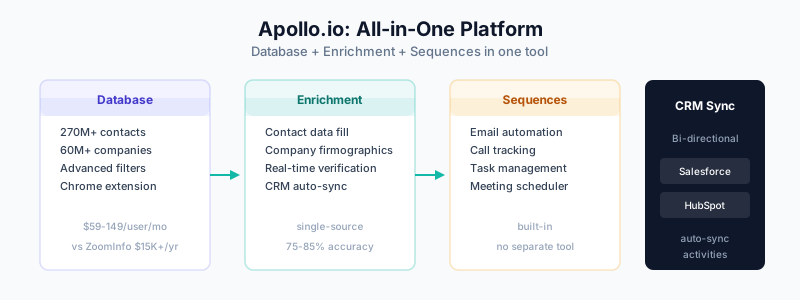
What Apollo.io Offers
Apollo is an all-in-one platform:
Database & Prospecting:
- 270M+ B2B contacts
- 60M+ companies
- Advanced search filters
- Chrome extension for LinkedIn
Engagement:
- Email sequences
- Call tracking
- Task management
- Meeting scheduler
Enrichment:
- Contact data enrichment
- Company data enrichment
- Real-time verification
CRM Integration:
- Salesforce (bi-directional)
- HubSpot (bi-directional)
- Other CRMs via Zapier
Apollo vs Other Tools
Apollo vs ZoomInfo
| Feature | Apollo | ZoomInfo |
|---|---|---|
| Database size | 270M+ contacts | 321M+ contacts |
| Data accuracy | Good | Excellent |
| Engagement tools | Built-in | Separate (Engage) |
| Pricing | $99-149/user/mo | $15K+ annually |
| Best for | SMB/Mid-market | Enterprise |
Apollo vs Clay
| Feature | Apollo | Clay |
|---|---|---|
| Data source | Own database | 100+ sources |
| Enrichment | Single source | Waterfall |
| Sequences | Built-in | Requires separate tool |
| Flexibility | Out-of-box | Highly customizable |
| Best for | Quick start | Maximum coverage |
Many teams use both: Apollo for database + sequences, Clay for deep enrichment.
Getting Started
Account Setup
-
Sign up at apollo.io
-
Choose plan:
- Free: 10,000 email credits/month
- Basic ($59/user/mo): Unlimited emails, basic sequences
- Professional ($99/user/mo): Advanced features, integrations
- Organization ($149/user/mo): Full feature set
-
Complete profile setup
-
Install Chrome extension
Initial Configuration
Step 1: Email Configuration
Connect your email:
- Go to Settings → Email
- Connect Gmail or Outlook
- Configure sending limits (start conservative: 50/day)
- Enable email tracking
Step 2: Calendar Integration
For meeting scheduling:
- Settings → Calendar
- Connect Google Calendar or Outlook
- Set availability preferences
- Configure meeting types
Step 3: Team Setup
If multiple users:
- Settings → Team
- Invite team members
- Assign roles (Admin, User)
- Configure sharing settings
CRM Integration
Salesforce Integration
Setup:
- Go to Settings → Integrations → Salesforce
- Click Connect
- Authorize via OAuth
- Configure sync settings
Sync Configuration:
Objects to Sync:
☑ Contacts
☑ Leads
☑ Accounts
☑ Opportunities (optional)

Sync Direction:
☑ Apollo → Salesforce (push)
☑ Salesforce → Apollo (pull)

Field Mapping:
  Apollo Field     → Salesforce Field
  Email            → Email
  First Name       → FirstName
  Last Name        → LastName
  Title            → Title
  Company          → Company / Account
  Phone            → Phone
  LinkedIn URL     → Custom: LinkedIn_URL__c
Duplicate Handling:
- Match on: Email (recommended)
- If match found: Update existing
- If no match: Create new
Sync Frequency:
- Real-time for pushed records
- Scheduled pull every 1-6 hours
HubSpot Integration
Setup:
- Go to Settings → Integrations → HubSpot
- Click Connect
- Authorize via OAuth
- Configure sync settings
Configuration:
Objects to Sync:
☑ Contacts
☑ Companies
☑ Deals (optional)

Sync Settings:
  - Sync Apollo contacts to HubSpot: Yes
  - Sync HubSpot contacts to Apollo: Yes
  - Create new records: Yes
  - Update existing records: Yes

Field Mapping:
  Apollo Field     → HubSpot Property
  Email            → email
  First Name       → firstname
  Last Name        → lastname
  Company          → company
  Title            → jobtitle
  Phone            → phone
Avoiding Duplicates
Apollo can create duplicates if not configured properly:
Prevention strategies:
- Match on email (most reliable)
- Enable deduplication in Apollo settings
- Use Salesforce duplicate rules as backup
- For HubSpot, rely on native deduplication
Recommended Apollo Settings:
  - Check for existing before create: Yes
  - Match field: Email
  - Action on match: Update (don't create duplicate)
Using Apollo’s Database
Building Prospect Lists
Search Filters:
Example: Find VP-level sales contacts at B2B SaaS companies

Person Filters:
  - Title: VP, Vice President, Director
  - Department: Sales, Revenue, Business Development
  - Seniority: VP, Director

Company Filters:
  - Industry: Software, SaaS
  - Employee Count: 50-500
  - Technologies: Salesforce, HubSpot (indicates B2B)
  - Location: United States

Results: Save as list
Saved Searches:
Create saved searches for ongoing prospecting:
- Build your filter criteria
- Click Save Search
- Enable notifications for new matches
- Apollo alerts you when new contacts match
Chrome Extension Prospecting
On LinkedIn:
- Visit a profile
- Click Apollo extension
- See contact info (email, phone)
- Add to list or sequence with one click
Best practices:
- Verify emails before adding to sequences
- Don’t scrape entire company pages (violates LinkedIn ToS)
- Use for targeted, intentional prospecting
Enriching Existing Data
From CRM:
- Apollo pulls contacts from Salesforce/HubSpot
- Automatically enriches with Apollo data
- Pushes enriched data back
From CSV:
- Data → Import
- Upload your list
- Apollo enriches matching records
- Export or push to CRM
Sequences (Email Automation)
Creating a Sequence
- Go to Engage → Sequences
- Click New Sequence
- Configure steps:
Example: Initial Outreach Sequence

Step 1: Email (Day 1)
  Subject: {first_name}, quick question about {company}
  Body: [Personalized first email]

Step 2: Email (Day 3)
  Subject: Re: {first_name}, quick question about {company}
  Body: [Follow-up, different angle]

Step 3: LinkedIn Task (Day 5)
  Action: Send connection request

Step 4: Email (Day 7)
  Subject: [New subject line]
  Body: [Case study or social proof]

Step 5: Call Task (Day 10)
  Action: Call if phone available

Step 6: Email (Day 14)
  Subject: Should I close your file?
  Body: [Breakup email]
Sequence Best Practices
Email Limits:
- Start with 30-50 emails/day per inbox
- Gradually increase over 2-3 weeks
- Watch bounce rates and spam complaints
Personalization:
- Use Apollo’s variables:
{first_name},{company},{title} - Add custom fields for deeper personalization
- Consider Clay for AI-generated personalization
Timing:
- Send during business hours (recipient’s timezone)
- Tuesday-Thursday typically best
- Avoid Mondays and Fridays
Replies:
- Apollo auto-detects replies
- Responders exit the sequence
- Out-of-office triggers pause (configurable)
Sequence + CRM Workflow
Apollo Sequence Flow:

1. Add contact to sequence in Apollo
   ↓
2. Apollo sends emails
   ↓
3. Apollo logs activities to Salesforce/HubSpot
   ↓
4. Contact replies
   ↓
5. Apollo stops sequence
   ↓
6. Task created in CRM for rep follow-up
   ↓
7. Rep takes over conversation
Enrichment Workflows
Real-Time Enrichment
When saving contacts:
- Apollo automatically enriches on save
- Fills in missing fields
- Verifies email
- Pushes to CRM
Bulk Enrichment
For existing data:
- Export from CRM (or upload CSV)
- Import to Apollo
- Apollo enriches matching records
- Export or push back to CRM
Enrichment Coverage
Apollo’s coverage varies:
| Segment | Email Coverage | Phone Coverage |
|---|---|---|
| US Tech | 65-75% | 40-50% |
| US Enterprise | 60-70% | 35-45% |
| US SMB | 50-60% | 30-40% |
| Europe | 45-55% | 25-35% |
| APAC | 35-45% | 20-30% |
If Apollo coverage is insufficient:
- Use Clay waterfall enrichment
- Add second provider (Lusha, Cognism, etc.)
- Verify emails with NeverBounce
Measuring Success
Key Metrics
Prospecting:
- Contacts added per week
- Enrichment success rate
- List quality score
Engagement:
- Email deliverability (>95% target)
- Open rate (>50% target)
- Reply rate (>5% target)
- Meeting book rate (>1% target)
Pipeline:
- Opportunities from Apollo sourced leads
- Revenue attributed to Apollo
Apollo Analytics
Apollo provides dashboards for:
- Sequence performance
- Team activity
- Pipeline contribution
- A/B test results
CRM Attribution
Track Apollo’s impact in your CRM:
Salesforce Custom Fields:
- Lead Source = "Apollo"
- Apollo_Sequence__c = Sequence name
- Apollo_First_Touch__c = Date

Reports:
- Leads by Lead Source
- Opportunities by Lead Source
- Revenue by Lead Source
Common Issues
Issue: Low Email Deliverability
Symptoms: High bounce rates, emails going to spam
Solutions:
- Verify emails before sending (Apollo or NeverBounce)
- Warm up new email accounts
- Reduce daily send volume
- Improve email copy (avoid spam triggers)
Issue: CRM Sync Duplicates
Symptoms: Duplicate records in Salesforce/HubSpot
Solutions:
- Configure Apollo to match on email
- Enable “update existing” instead of “create new”
- Use CRM duplicate rules as safety net
- Run periodic deduplication (DemandTools, Cloudingo)
Issue: Low Reply Rates
Symptoms: <2% reply rate
Solutions:
- Improve subject lines (A/B test)
- Personalize beyond name/company
- Shorten emails
- Adjust send timing
- Verify you’re targeting right personas
Issue: Data Gaps
Symptoms: Missing emails/phones for many contacts
Solutions:
- Add waterfall enrichment with Clay
- Use LinkedIn outreach for contacts without email
- Try direct dial providers (Cognism, Lusha)
Related Guides
- Clay 101 — Use with Apollo for deeper enrichment
- Waterfall Enrichment Guide — Fill Apollo’s gaps
- Modern Outbound Data Stack — Where Apollo fits
- Salesforce Duplicate Rules — Prevent Apollo duplicates
- HubSpot Duplicate Management — HubSpot deduplication
- The B2B Data Decay Problem — Why enrichment matters