Cloudingo Setup Guide: Salesforce Deduplication Made Simple
Complete guide to Cloudingo for Salesforce deduplication. Learn setup, filter configuration, automation, and best practices for clean CRM data.
Cloudingo is a cloud-based Salesforce deduplication tool known for its user-friendly interface and powerful automation capabilities. If DemandTools feels too complex, Cloudingo offers a more approachable alternative.
This guide covers everything you need to get started.
What Is Cloudingo?
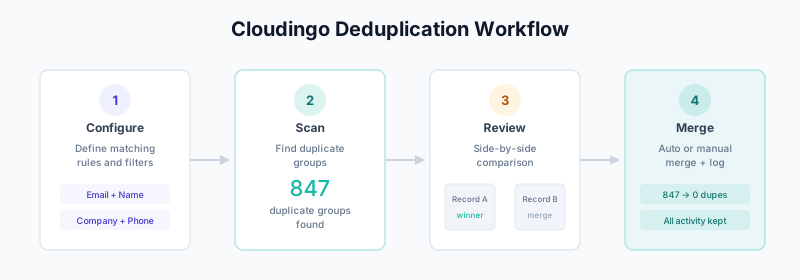
Cloudingo is a Salesforce-native app that:
- Identifies duplicate records across objects
- Merges duplicates with customizable rules
- Automates ongoing deduplication
- Provides data import with duplicate prevention
Key differentiators:
- Cloud-based (no desktop install)
- Intuitive visual interface
- Strong automation features
- Real-time duplicate detection
Cloudingo vs DemandTools
| Feature | Cloudingo | DemandTools |
|---|---|---|
| Interface | Cloud/web | Desktop app |
| Ease of use | Easier | More complex |
| Matching flexibility | Good | Excellent |
| Automation | Built-in | Scheduler add-on |
| Price | Lower entry | Higher |
| Learning curve | Shorter | Longer |
Choose Cloudingo when:
- You want a simpler UI
- Cloud-native is important
- Budget is constrained
- You need quick wins
Choose DemandTools when:
- You need maximum matching control
- You’re doing complex data migrations
- You have dedicated admin resources
Getting Started
Installation
- Go to Salesforce AppExchange
- Search “Cloudingo”
- Click “Get It Now”
- Install in Production or Sandbox
- Assign permission sets to users
Initial Configuration
After installation:
- Launch Cloudingo from the App Launcher
- Connect your org (OAuth authentication)
- Run initial analysis to see duplicate landscape
- Configure matching filters based on your needs
Permissions Required
Cloudingo users need:
- API access
- Read/Modify on objects to deduplicate
- Delete permissions (for merge operations)
- Cloudingo permission set
Understanding Cloudingo Filters
Filters are Cloudingo’s matching rules. They define what constitutes a duplicate.
Pre-Built Filters
Cloudingo includes ready-to-use filters:
Standard Account Filter:
- Account Name (fuzzy match)
- Website (exact match)
- Billing City (exact match)
Standard Contact Filter:
- Email (exact match)
- OR First Name + Last Name + Account (fuzzy)
Standard Lead Filter:
- Email (exact match)
- OR First Name + Last Name + Company (fuzzy)
Creating Custom Filters
- Go to Filters → Create New Filter
- Select object (Account, Contact, Lead, etc.)
- Add matching conditions
Example: Contact Email Filter
Filter Name: Contact - Email Exact
Object: Contact

Matching Rules:
  Group 1:
    Field: Email
    Match Type: Exact
Example: Contact Multi-Field Filter
Filter Name: Contact - Name + Account
Object: Contact

Matching Rules:
  Group 1:
    Field: First Name
    Match Type: Fuzzy

    AND

    Field: Last Name
    Match Type: Fuzzy

    AND

    Field: Account Name
    Match Type: Fuzzy
Match Types Explained
Exact: Values must be identical (case-insensitive)
"john@acme.com" = "JOHN@ACME.COM" ✓
"john@acme.com" ≠ "jon@acme.com" ✗
Fuzzy: Allows similar values
"John Smith" ≈ "Jon Smith" ✓
"Acme Inc" ≈ "ACME" ✓
Phonetic: Sounds-alike matching
"Smith" ≈ "Smyth" ✓
"Jon" ≈ "John" ✓
Contains: Partial string matching
"Acme Corporation" contains "Acme" ✓Running Deduplication Jobs
Manual Job Execution
-
Go to Jobs → New Job
-
Select filter (matching rule)
-
Configure options:
- Preview only vs. Execute
- Auto-merge vs. Manual review
- Master record selection rules
-
Click Run
Understanding Job Results
After running a job:
Job Results Summary:
─────────────────────────────────────────
Total Records Scanned:     10,000
Duplicate Groups Found:       450
Records in Duplicate Groups: 1,200
Records to Merge:             750
Duplicate Group: A set of records that match each other Master Record: The record that will survive the merge Victim Records: Records that will be merged into the master
Reviewing Duplicates
Before merging, review duplicate groups:
- Click on a duplicate group
- See side-by-side comparison
- Verify they’re true duplicates
- Adjust master selection if needed
- Approve or reject the merge
Master Record Selection
Configure which record “wins”:
Selection Rules (in priority order):
- Most recently modified
- Most populated fields
- Oldest created date
- Manual selection
Field-Level Merge Rules:
- Keep master value
- Keep victim value
- Keep most recent
- Keep longest (text)
- Keep highest (numbers)
- Concatenate
Automation Setup
Cloudingo’s automation runs deduplication continuously.
Scheduling Automated Jobs
- Go to Automation → Create Schedule
- Configure:
Schedule Name: Daily Contact Deduplication
Filter: Contact - Email Exact
Frequency: Daily at 2:00 AM
Action: Auto-merge (high confidence matches)
Notification: Email on completion
Automation Modes
Preview Mode:
- Identifies duplicates
- Doesn’t merge
- Sends report for review
Auto-Merge Mode:
- Merges high-confidence matches automatically
- Queues low-confidence for review
- Best for ongoing maintenance
Alert Mode:
- Notifies users when duplicates detected
- Doesn’t merge automatically
- Good for training period
Confidence Thresholds
Set thresholds for auto-merge:
High Confidence (Auto-merge):
  - Email exact match: 100%
  - All name fields exact: 95%

Medium Confidence (Review):
  - Name fuzzy + company fuzzy: 75-94%

Low Confidence (Flag only):
  - Partial matches: <75%
Data Import with Deduplication
Cloudingo can deduplicate during import—preventing new duplicates at the source.
Import Workflow
- Go to Import → New Import
- Upload CSV file
- Map fields to Salesforce
- Select deduplication filter
- Choose action for duplicates:
- Skip (don’t import)
- Update (merge with existing)
- Create (import as new anyway)
- Preview results
- Execute import
Import Settings
Import Configuration:
─────────────────────────────────────────
File: trade_show_leads.csv
Object: Lead
Matching Filter: Lead - Email Exact

Duplicate Handling:
  If exact email match: Update existing record
  If fuzzy name match: Flag for review
  If no match: Create new record

Field Mapping:
  CSV Column      → Salesforce Field
  email           → Email
  first_name      → FirstName
  last_name       → LastName
  company         → Company
  phone           → Phone
Cross-Object Deduplication
Cloudingo supports Lead-to-Contact matching.
Setup
- Create a cross-object filter:
Filter Name: Lead to Contact - Email
Source Object: Lead
Target Object: Contact

Matching Rules:
Lead.Email = Contact.Email (Exact)- Run job with this filter
- Results show Leads matching Contacts
- Action: Convert Lead OR merge data
Lead Conversion via Cloudingo
When a Lead matches a Contact:
- Cloudingo identifies the match
- Options:
- Convert Lead to existing Contact
- Merge Lead data into Contact (without formal conversion)
- Flag for manual review
Best Practices
1. Start with Preview Mode
Always preview before executing:
Week 1: Run filters in preview mode
Week 2: Review results, adjust filters
Week 3: Execute on small batch (100 records)
Week 4: Full execution if results are good
2. Build Filters Incrementally
Start simple, add complexity:
Phase 1: Email exact match only
Phase 2: Add name + company fuzzy
Phase 3: Add phone matching
Phase 4: Cross-object matching
3. Document Your Configuration
Keep records of:
- Filter definitions
- Master selection rules
- Automation schedules
- Exception handling
4. Monitor Automation Results
Review automated job results weekly:
- Check merge counts
- Review flagged duplicates
- Watch for false positives
- Adjust thresholds as needed
5. Train Users
Even with automation:
- Train users to check for duplicates
- Show them how to handle alerts
- Create a process for exceptions
Troubleshooting
Issue: Too Many False Positives
Causes:
- Fuzzy matching too loose
- Common names flagging incorrectly
- Missing discriminating fields
Solutions:
- Add more required fields to filter
- Switch from fuzzy to exact on key fields
- Add exclusion rules for common values
Issue: Duplicates Still Getting Through
Causes:
- Filter not covering all scenarios
- Automation not running frequently enough
- Data entry bypassing checks
Solutions:
- Add OR conditions to filters
- Increase automation frequency
- Enable real-time duplicate alerts
Issue: Merge Losing Data
Causes:
- Master selection rules incorrect
- Field-level merge rules not set
- Related records not transferring
Solutions:
- Review and adjust master selection
- Configure field-level merge preferences
- Check related object settings
Issue: Slow Performance
Causes:
- Too many records in scope
- Complex fuzzy matching
- Running during peak hours
Solutions:
- Add filters to reduce scope
- Schedule during off-hours
- Break into smaller batches
Pricing
Cloudingo pricing is based on Salesforce org size:
| Tier | Records | Approximate Price |
|---|---|---|
| Starter | Up to 50K | $99/month |
| Professional | Up to 250K | $199/month |
| Enterprise | 250K+ | Custom |
Includes:
- Unlimited users
- Unlimited jobs
- All features
Integration with Other Tools
Cloudingo + Native Duplicate Rules
Use both together:
- Salesforce Duplicate Rules: Real-time prevention
- Cloudingo: Batch cleanup and automation
Cloudingo + Enrichment Tools
Workflow:
- Clay or Breeze enriches records
- Cloudingo deduplicates enriched data
- Clean, enriched records flow to sales
Cloudingo + HubSpot
If syncing Salesforce ↔ HubSpot:
- Deduplicate in Salesforce with Cloudingo
- Sync clean data to HubSpot
- Use HubSpot deduplication for HubSpot-native records
Related Guides
- DemandTools Guide — Alternative for complex deduplication
- Salesforce Duplicate Rules — Native duplicate prevention
- Salesforce Matching Rules — Understanding match logic
- The B2B Data Decay Problem — Why deduplication matters
- HubSpot Duplicate Management — If using HubSpot too