Salesforce Matching Rules Explained: Fuzzy vs Exact Matching
Deep dive into Salesforce matching rules. Learn when to use fuzzy vs exact matching, how to configure custom rules, and optimize for accuracy.
Matching rules are the brain behind Salesforce duplicate management. They determine how records are compared—what fields matter, and what constitutes a “match.”
Get them wrong, and you’ll either miss duplicates or flag false positives constantly. This guide shows you how to configure them correctly.
How Matching Rules Work
A matching rule defines:
- Which fields to compare between records
- What method to use for comparison (exact vs fuzzy)
- What logic combines multiple conditions (AND vs OR)
New Record                    Existing Record
─────────────                 ─────────────────
Email: john@acme.com    ←→    Email: john@acme.com
First Name: John        ←→    First Name: Jonathan
Last Name: Smith        ←→    Last Name: Smith
Company: Acme Inc       ←→    Company: ACME

Matching Rule Evaluation:
  Email (Exact): MATCH ✓
  First Name (Fuzzy): MATCH ✓ (John ≈ Jonathan)
  Last Name (Fuzzy): MATCH ✓
  Company (Fuzzy): MATCH ✓ (Acme Inc ≈ ACME)

Result: DUPLICATE DETECTED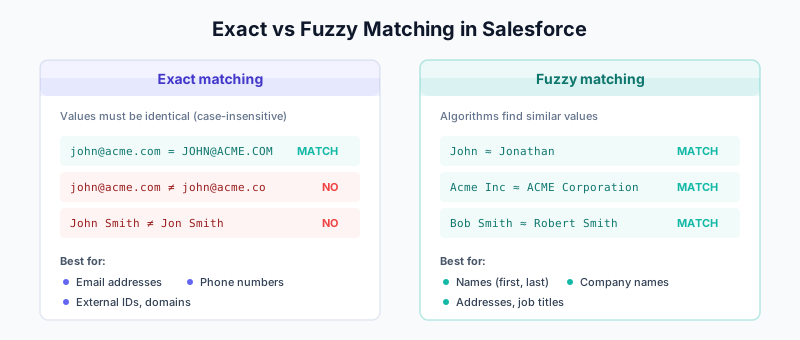
Exact vs Fuzzy Matching
Exact Matching
Exact matching requires field values to be identical (case-insensitive).
How it works:
"john@acme.com" = "JOHN@ACME.COM" → MATCH
"john@acme.com" = "john@acme.co"  → NO MATCH
"John Smith"    = "John Smith"    → MATCH
"John Smith"    = "John Smyth"    → NO MATCH
Best for:
- Email addresses
- Phone numbers (after standardization)
- External IDs
- Domains/websites
Pros:
- No false positives
- Fast performance
- Predictable results
Cons:
- Misses typos and variations
- Requires clean, standardized data
Fuzzy Matching
Fuzzy matching uses algorithms to find similar (not identical) values.
How it works:
"John"        ≈ "Jon"         → MATCH (nickname handling)
"John"        ≈ "Jonathan"    → MATCH (name variation)
"Smith"       ≈ "Smyth"       → MATCH (phonetic similarity)
"Acme Inc"    ≈ "ACME"        → MATCH (company variation)
"123 Main St" ≈ "123 Main Street" → MATCH (abbreviation)
Best for:
- Names (first, last)
- Company names
- Addresses
- Job titles
Pros:
- Catches variations and typos
- Handles real-world data messiness
- More comprehensive duplicate detection
Cons:
- Can produce false positives
- Slower performance
- Less predictable
Fuzzy Matching Algorithms
Salesforce offers different fuzzy algorithms optimized for specific data types:
First Name Algorithm
Optimized for first names:
- Handles nicknames (Bob = Robert, Bill = William)
- Accounts for common misspellings
- Ignores middle names/initials
Matches:
  "Robert" ≈ "Bob" ✓
  "William" ≈ "Bill" ✓
  "Michael" ≈ "Mike" ✓
  "Jennifer" ≈ "Jen" ✓

Doesn't match:
  "Robert" ≈ "Richard" ✗
  "John" ≈ "Jane" ✗
Last Name Algorithm
Optimized for surnames:
- Phonetic matching (sounds-alike)
- Handles common variations
- Accounts for prefixes (Mc, Mac, O’, Van, De)
Matches:
  "Smith" ≈ "Smyth" ✓
  "McDonald" ≈ "MacDonald" ✓
  "O'Brien" ≈ "OBrien" ✓
  "Johnson" ≈ "Johnsen" ✓

Doesn't match:
  "Smith" ≈ "Jones" ✗
Company Name Algorithm
Optimized for business names:
- Ignores common suffixes (Inc, LLC, Corp, Ltd)
- Handles abbreviations
- Case insensitive
Matches:
  "Acme Inc" ≈ "ACME" ✓
  "Acme Corporation" ≈ "Acme Corp" ✓
  "International Business Machines" ≈ "IBM" ✓
  "Alphabet Inc" ≈ "Alphabet" ✓

Doesn't match:
  "Acme Inc" ≈ "Ajax Corp" ✗
Street Address Algorithm
Optimized for addresses:
- Handles abbreviations (St/Street, Ave/Avenue, Rd/Road)
- Normalizes directionals (N/North, S/South)
- Ignores unit/suite numbers
Matches:
  "123 Main Street" ≈ "123 Main St" ✓
  "456 N Broadway Ave" ≈ "456 North Broadway Avenue" ✓

Doesn't match:
  "123 Main St" ≈ "456 Main St" ✗
City Algorithm
Handles city name variations:
- Common abbreviations
- Alternate names
Matches:
  "New York" ≈ "NYC" ✓
  "Los Angeles" ≈ "LA" ✓
  "Saint Louis" ≈ "St. Louis" ✓
Phone Algorithm
Normalizes phone formats:
- Ignores formatting characters
- Handles country codes
- Matches core digits
Matches:
  "(555) 123-4567" ≈ "5551234567" ✓
  "+1-555-123-4567" ≈ "555.123.4567" ✓
Title Algorithm
For job titles:
- Handles abbreviations (VP = Vice President)
- Common variations
- Level equivalents
Matches:
  "VP of Sales" ≈ "Vice President, Sales" ✓
  "Sr. Engineer" ≈ "Senior Engineer" ✓
  "Dir. Marketing" ≈ "Director of Marketing" ✓
Creating Custom Matching Rules
Step-by-Step Setup
- Navigate to Setup → Search “Matching Rules”
- Click New Rule
- Select Object (Lead, Contact, Account)
- Name your rule descriptively (e.g., “Contact - Email OR Name+Company”)
- Add matching criteria
Matching Criteria Structure
Each criterion has:
- Field: Which field to compare
- Matching Method: Exact or Fuzzy (with algorithm)
- Match Blank Fields: Whether empty values match each other
Example: Contact Matching Rule
Rule Name: Contact - Comprehensive Match

Criteria Group 1 (High Confidence):
  Field: Email
  Method: Exact
  Blank Handling: Don't match blanks

OR

Criteria Group 2 (Medium Confidence):
  Field: First Name
  Method: Fuzzy: First Name
  Blank Handling: Don't match blanks

  AND

  Field: Last Name
  Method: Fuzzy: Last Name
  Blank Handling: Don't match blanks

  AND

  Field: Account Name
  Method: Fuzzy: Company Name
  Blank Handling: Don't match blanks
Example: Lead Matching Rule
Rule Name: Lead - Email Plus Fallback

Criteria Group 1:
  Field: Email
  Method: Exact

OR

Criteria Group 2:
  Field: First Name
  Method: Fuzzy: First Name

  AND

  Field: Last Name
  Method: Fuzzy: Last Name

  AND

  Field: Company
  Method: Fuzzy: Company Name

  AND

  Field: Phone
  Method: Fuzzy: Phone
Example: Account Matching Rule
Rule Name: Account - Domain or Name+Location

Criteria Group 1:
  Field: Website
  Method: Exact

OR

Criteria Group 2:
  Field: Account Name
  Method: Fuzzy: Company Name

  AND

  Field: Billing City
  Method: Fuzzy: City
Tuning Matching Rules for Accuracy
Problem: Too Many False Positives
Symptoms: Users constantly see duplicate warnings for non-duplicates.
Solutions:
- Add more required fields
Before: First Name + Last Name
After: First Name + Last Name + Email Domain- Switch from fuzzy to exact
Before: Company (Fuzzy)
After: Website Domain (Exact)- Add discriminating fields
Add: Phone (Exact) as additional AND conditionProblem: Missing Real Duplicates
Symptoms: Duplicates get created despite active rules.
Solutions:
- Loosen matching criteria
Before: Email (Exact) only
After: Email (Exact) OR (Name + Company fuzzy)- Add OR conditions
Match if: Email matches
OR
Match if: Phone matches
OR
Match if: Name + Company matches- Use fuzzy instead of exact
Before: Company Name (Exact)
After:  Company Name (Fuzzy: Company Name)
Finding the Balance
Create multiple matching rule configurations and test:
Configuration A (Strict):
  Matches found: 500
  False positives: 5 (1%)
  Missed duplicates: 50 (10%)

Configuration B (Balanced):
  Matches found: 700
  False positives: 35 (5%)
  Missed duplicates: 20 (3%)

Configuration C (Loose):
  Matches found: 900
  False positives: 150 (17%)
  Missed duplicates: 5 (0.5%)
For most organizations, Configuration B is optimal—some false positives are acceptable if you catch more real duplicates.
Cross-Object Matching
Match records across different objects (Lead to Contact).
Lead-to-Contact Matching
Rule Name: Lead to Contact - Email Match
Object: Lead
Compare Against: Contact

Criteria:
  Lead.Email = Contact.Email (Exact)
This rule, when linked to a duplicate rule, warns users when creating a Lead that matches an existing Contact.
Use Cases for Cross-Object Matching
-
Prevent Lead/Contact duplicates
- New Lead matches existing Contact → Alert/Block
-
Account hierarchy detection
- New Account matches subsidiary name → Alert
-
Person Account matching
- New Contact matches Person Account → Alert
Performance Considerations
Matching rules add processing overhead. Optimize for performance:
Best Practices
- Limit fuzzy fields: Each fuzzy comparison is slower than exact
- Index key fields: Ensure matching fields are indexed
- Use exact when possible: Exact matching is faster
- Minimize cross-object rules: Cross-object comparisons are expensive
Performance Impact by Configuration
| Configuration | Relative Speed |
|---|---|
| 1 field, Exact | Fast (baseline) |
| 2 fields, Exact | Fast |
| 1 field, Fuzzy | Medium |
| 3 fields, Fuzzy | Slow |
| Cross-object, Fuzzy | Very Slow |
Large Org Considerations
For orgs with millions of records:
- Test matching rules in sandbox first
- Monitor duplicate rule execution time
- Consider limiting rule scope with filters
- Schedule heavy deduplication (DemandTools) during off-hours
Testing Matching Rules
Before Activation
- Export sample data (1,000+ records)
- Create test duplicates with various similarity levels
- Run matching preview in sandbox
- Review results for false positives/negatives
- Adjust criteria as needed
- Re-test until satisfied
Test Cases to Include
Test Case 1: Obvious duplicate
  Record A: john.smith@acme.com, John Smith, Acme Inc
  Record B: john.smith@acme.com, John Smith, Acme Inc
  Expected: Match ✓

Test Case 2: Email match only
  Record A: john@acme.com, John Doe, Different Corp
  Record B: john@acme.com, Jonathan Smith, Acme Inc
  Expected: Match ✓ (email is unique identifier)

Test Case 3: Name variation
  Record A: bob@acme.com, Robert Smith, Acme
  Record B: robert@acme.com, Bob Smith, Acme Inc
  Expected: Match ✓ (if using name fuzzy + company fuzzy)

Test Case 4: Different people, same company
  Record A: john@acme.com, John Smith, Acme Inc
  Record B: jane@acme.com, Jane Doe, Acme Inc
  Expected: No Match ✓

Test Case 5: Similar names, different companies
  Record A: john@acme.com, John Smith, Acme Inc
  Record B: john@ajax.com, John Smith, Ajax Corp
  Expected: No Match ✓ (or Match depending on your rules)
Standard vs Custom: When to Use Each
Use Standard Matching Rules When
- You’re just getting started
- Your data is relatively clean
- Basic email + name matching is sufficient
- You want minimal configuration
Create Custom Matching Rules When
- Standard rules produce too many false positives
- You need to match on custom fields
- You have specific business logic requirements
- You need cross-object matching not covered by standards
Matching Rule Limits
Salesforce has limits on matching rules:
| Limit | Value |
|---|---|
| Active matching rules per object | 5 |
| Total matching rules per object | 25 |
| Fields per matching rule | 10 |
| Matching rules per duplicate rule | 3 |
Plan your matching strategy within these limits.
Related Guides
- Salesforce Duplicate Rules Guide — How to use matching rules in duplicate rules
- DemandTools Guide — Advanced matching for bulk deduplication
- The B2B Data Decay Problem — Why accurate matching matters
- HubSpot Duplicate Management — Matching in HubSpot