DemandTools Complete Guide: Salesforce Data Management
Master DemandTools for Salesforce data cleaning, deduplication, and mass updates. Complete guide to modules, setup, and best practices.
DemandTools is the Swiss Army knife of Salesforce data management. For over a decade, it’s been the go-to tool for admins who need to clean, deduplicate, and manipulate Salesforce data at scale.
This guide covers everything you need to know to use DemandTools effectively.
What Is DemandTools?
DemandTools is a desktop application (Windows/Mac) that connects to your Salesforce org and provides powerful data manipulation capabilities that go far beyond Salesforce’s native tools.
Key capabilities:
- Mass deduplication with complex matching logic
- Bulk data updates and transformations
- Data import with duplicate prevention
- Mass delete with safety controls
- Data export and backup
Two versions:
- DemandTools V (Classic): Desktop application, full feature set
- DemandTools Elements: Cloud-based, simplified, lower cost
DemandTools vs Native Salesforce
| Capability | Salesforce Native | DemandTools |
|---|---|---|
| Duplicate prevention | Duplicate Rules | More flexible matching |
| Bulk deduplication | Data Loader + manual | Automated mass merge |
| Mass update | Data Loader | Visual interface + logic |
| Complex matching | Limited | Fuzzy, phonetic, custom |
| Merge preview | Basic | Detailed comparison |
| Rollback | None | Activity logging |
When to use DemandTools:
- You have existing duplicates to clean up
- You need mass data updates with conditional logic
- Native tools don’t provide enough matching flexibility
- You’re doing a data migration or cleanup project
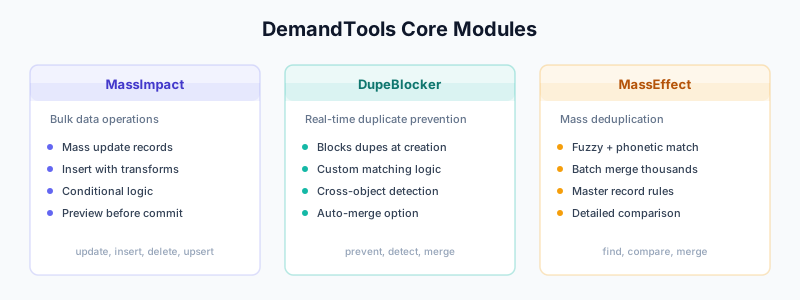
Core Modules
DemandTools is organized into modules, each handling a specific task.
Module 1: MassImpact
Purpose: Bulk update, insert, delete, or upsert records.
Use cases:
- Update thousands of records with new values
- Mass delete old records
- Import data with transformation rules
Key features:
- Visual mapping interface
- Pre-processing formulas
- Conditional updates (if field X, then update Y)
- Preview before commit
Example workflow:
Scenario: Update all Contacts where State = "California" to State = "CA"

1. Select object: Contact
2. Add filter: State = "California"
3. Map transformation: State → "CA"
4. Preview affected records
5. Execute update
Module 2: DupeBlocker
Purpose: Real-time duplicate prevention (runs within Salesforce).
Use cases:
- Block duplicates at point of entry
- Warn users about potential duplicates
- Auto-merge incoming duplicates
How it differs from Salesforce Duplicate Rules:
- More flexible matching algorithms
- Cross-object matching (Lead to Contact)
- Custom actions on match
Setup overview:
- Define matching scenarios
- Set actions (block, warn, auto-merge)
- Deploy to Salesforce
- DupeBlocker runs natively in SF
Module 3: MassEffect
Purpose: Mass deduplicate existing records.
Use cases:
- Clean up years of accumulated duplicates
- Post-migration deduplication
- Regular maintenance cleanup
Key features:
- Multiple matching methods (exact, fuzzy, phonetic)
- Winner/loser rules for merge
- Related record handling
- Preview and rollback
Example workflow:
Scenario: Deduplicate Contacts by email

1. Select object: Contact
2. Define match: Email (Exact)
3. Set winner rule: Most recent activity
4. Configure related records: Move all to winner
5. Preview matches
6. Execute merge
Module 4: PeopleImport
Purpose: Import Leads/Contacts with built-in deduplication.
Use cases:
- Import trade show lists without creating duplicates
- Regular data uploads from external sources
- Migration from other CRMs
Key features:
- Match against existing records during import
- Update existing vs create new logic
- Field mapping with transformations
- Error handling and reporting
Workflow:
1. Upload CSV/Excel file
2. Map fields to Salesforce
3. Define duplicate matching rules
4. Choose action: Update existing / Create new / Skip
5. Preview import results
6. Execute import
Module 5: SingleView
Purpose: View and manage a single record with all relationships.
Use cases:
- Investigate complex record relationships
- Manual duplicate review and merge
- Data cleanup for specific accounts
Module 6: MassEffect Scheduler
Purpose: Automate recurring deduplication jobs.
Use cases:
- Daily duplicate checks
- Weekly data quality maintenance
- Scheduled cleanup for specific objects
Setting Up DemandTools
Installation
- Download DemandTools from Validity
- Install on Windows or Mac
- Connect to Salesforce:
- Production or Sandbox
- OAuth authentication
- Select user permissions
Permissions Required
DemandTools needs a Salesforce user with:
- API access
- Read/write on objects you’ll manage
- Delete permissions (if using delete features)
- Merge permissions (if using deduplication)
Best practice: Create a dedicated “DemandTools Admin” profile.
First Connection
- Launch DemandTools
- Click “Connect to Salesforce”
- Choose environment (Production/Sandbox)
- Authenticate via browser
- Grant access
Deduplication Deep Dive
Deduplication is DemandTools’ most powerful feature. Here’s how to do it right.
Step 1: Define Your Matching Strategy
Before touching DemandTools, decide:
- What fields indicate a duplicate?
- What level of matching (exact vs fuzzy)?
- What objects need deduplication?
Common strategies:
Contacts:
Primary: Email (Exact)
Secondary: First Name (Fuzzy) + Last Name (Fuzzy) + Account (Exact)
Accounts:
Primary: Website domain (Exact)
Secondary: Account Name (Fuzzy) + Billing City (Exact)
Leads:
Primary: Email (Exact)
Secondary: First Name (Fuzzy) + Last Name (Fuzzy) + Company (Fuzzy)
Step 2: Configure Matching in MassEffect
- Open MassEffect module
- Select object
- Add match conditions:
Match Group 1 (High Confidence):
  Email = Email (Exact Match)

Match Group 2 (Medium Confidence):
  First Name = First Name (Fuzzy Match)
  AND
  Last Name = Last Name (Fuzzy Match)
  AND
  Company = Company (Fuzzy Match)
Step 3: Set Winner Rules
When merging, which record survives? Define rules:
Winner Selection Rules (in priority order):

1. Record with most recent Activity Date
2. Record with most populated fields
3. Record with oldest Created Date (original)
4. Manual selection (for edge cases)
In DemandTools:
- “Master Record Selection” settings
- Choose fields to evaluate
- Set priority order
Step 4: Configure Field Merging
For each field, decide what happens:
- Keep Master: Use winner’s value
- Keep Victim: Use loser’s value
- Keep Most Recent: Compare dates
- Keep Longest: Longer text wins
- Keep Oldest: Original value wins
- Concatenate: Combine both values
Example configuration:
Field               Merge Rule
─────────────────────────────────
Email               Keep Master
Phone               Keep Most Recent
Description         Concatenate
Annual Revenue      Keep Highest
Created Date        Keep Oldest
Last Activity       Keep Most Recent
Step 5: Handle Related Records
Duplicates often have related records (opportunities, activities, etc.). Configure what happens:
Related Object      Action
─────────────────────────────────
Opportunities       Move to Master
Activities          Move to Master
Cases               Move to Master
Campaign Members    Move to Master
Notes               Move to Master
Attachments         Move to Master
Step 6: Preview and Verify
Always preview before executing:
- Run match analysis
- Review sample matches
- Check winner selection logic
- Verify field merge preview
- Spot-check edge cases
Step 7: Execute and Monitor
- Start with a small batch (100 records)
- Verify results in Salesforce
- Check for errors or unexpected behavior
- Scale up gradually
- Full execution
Step 8: Document and Report
DemandTools provides:
- Execution logs
- Records merged
- Errors encountered
- Before/after snapshots
Export these for compliance and auditing.
Mass Update Workflows
Beyond deduplication, DemandTools excels at mass updates.
Example 1: Standardize State Names
Scenario: Convert full state names to abbreviations

Object: Contact
Filter: State contains "California" OR "New York" OR...

Transformation:
  State = CASE(State,
    "California", "CA",
    "New York", "NY",
    "Texas", "TX",
    State)

Execute: Update matching records
Example 2: Populate Missing Fields
Scenario: Set Industry based on Account for Contacts

Object: Contact
Filter: Industry is blank AND Account.Industry is not blank

Transformation:
  Industry = Account.Industry

Execute: Update matching records
Example 3: Data Cleanup Campaign
Scenario: Clean up old leads

Object: Lead
Filter:
  Created Date < 2 years ago
  AND Status = "Open"
  AND Last Activity > 1 year ago

Action: Update Status to "Closed - Stale"
OR
Action: Delete (with backup)
Best Practices
1. Always Work in Sandbox First
Test every operation in a sandbox before production:
- Refresh sandbox with recent data
- Run DemandTools operations
- Verify results
- Then run in production
2. Backup Before Major Operations
Before mass updates or deletes:
- Export affected records to CSV
- Store backup securely
- Document what you’re changing
- Keep rollback plan ready
3. Start Small, Scale Up
For any new operation:
Batch 1: 100 records (verify manually)
Batch 2: 1,000 records (spot check)
Batch 3: Full dataset
4. Schedule Regular Maintenance
Set up recurring jobs:
- Weekly duplicate scans
- Monthly data quality reports
- Quarterly deep cleanups
5. Document Your Configurations
Save DemandTools scenarios for reuse:
- Matching rules
- Winner logic
- Field merge settings
- Filter criteria
6. Coordinate with Users
Before major cleanups:
- Notify affected teams
- Schedule during low-usage periods
- Have support ready for questions
DemandTools vs Alternatives
vs Cloudingo
| Feature | DemandTools | Cloudingo |
|---|---|---|
| Interface | Desktop app | Cloud-based |
| Learning curve | Steeper | Easier |
| Matching power | More options | Good basics |
| Automation | Scheduler available | Built-in scheduling |
| Price | Higher | Lower |
Choose DemandTools if: You need maximum flexibility and power. Choose Cloudingo if: You want simpler UX and cloud-native.
vs DataGroomr
| Feature | DemandTools | DataGroomr |
|---|---|---|
| AI matching | Rule-based | AI-powered |
| Setup time | Longer | Faster |
| Edge cases | Manual tuning | AI handles |
| Control | Full control | Less granular |
Choose DemandTools if: You want precise control over matching. Choose DataGroomr if: You want AI to handle matching logic.
vs Native Salesforce
Use native Duplicate Rules for:
- Preventing new duplicates (real-time)
- Simple matching criteria
- No additional cost
Use DemandTools for:
- Cleaning existing duplicates
- Complex matching requirements
- Mass data manipulation
Pricing
DemandTools pricing is license-based:
DemandTools V (Classic):
- Per-user licensing
- Annual subscription
- Contact Validity for current pricing
DemandTools Elements:
- Lower cost cloud version
- Simplified feature set
- Per-Salesforce-license pricing
For small teams, consider starting with Elements and upgrading as needed.
Troubleshooting
Issue: Slow Performance
Causes:
- Large dataset
- Complex matching rules
- Network latency
Solutions:
- Filter to smaller batches
- Simplify matching criteria
- Run during off-hours
- Check network connection
Issue: Unexpected Matches
Causes:
- Fuzzy matching too loose
- Missing filter criteria
- Data quality issues
Solutions:
- Tighten matching rules
- Add more filter conditions
- Preview before executing
Issue: Related Records Not Moving
Causes:
- Insufficient permissions
- Lookup field restrictions
- Object relationship issues
Solutions:
- Check user permissions
- Review object relationships
- Contact Validity support
Related Guides
- Salesforce Duplicate Rules — Native duplicate prevention
- The B2B Data Decay Problem — Why regular cleanup matters
- Data Enrichment vs Appending — Understanding data improvement
- Clay 101 — Modern enrichment workflows
- HubSpot Duplicate Management — If you use both platforms