Salesforce Duplicate Rules: Complete Setup Guide
Step-by-step guide to configuring Salesforce duplicate rules and matching rules. Prevent duplicates before they pollute your CRM.
Duplicate records are the silent killer of CRM data quality. They skew reports, confuse sales reps, and make your marketing automation unreliable.
Salesforce provides powerful native tools to prevent and manage duplicates. This guide shows you exactly how to set them up.
How Salesforce Duplicate Management Works
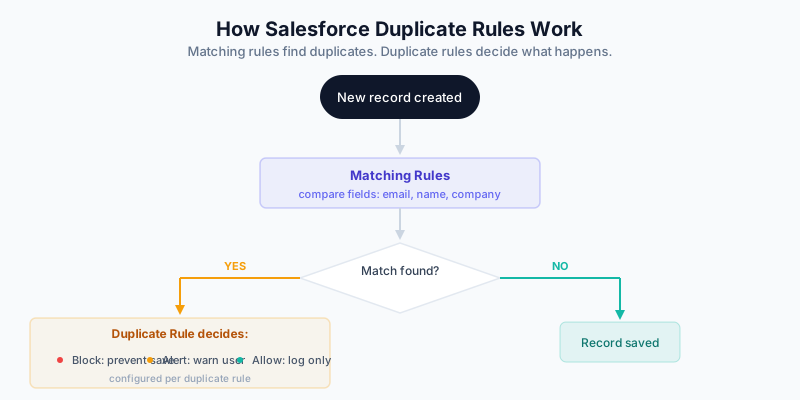
Salesforce duplicate management has two components:
- Matching Rules: Define how records are compared (what fields, what logic)
- Duplicate Rules: Define what happens when a match is found (block, alert, or allow)
New Record Created
       │
       ▼
┌─────────────────┐
│  MATCHING RULES │ ← Compare against existing records
│                 │   using defined field logic
└─────────────────┘
       │
       ▼
   Match Found?
       │
   Yes │ No
       │    └──→ Record created normally
       ▼
┌─────────────────┐
│ DUPLICATE RULES │ ← Determine action:
│                 │   Block, Alert, or Allow
└─────────────────┘
       │
       ▼
  Action Executed
Standard vs Custom Matching Rules
Standard Matching Rules
Salesforce includes pre-built matching rules:
Standard Contact Matching Rule
- Matches on: Email OR (First Name + Last Name + Account)
- Uses fuzzy matching on names
Standard Lead Matching Rule
- Matches on: Email OR (First Name + Last Name + Company)
- Uses fuzzy matching on names
Standard Account Matching Rule
- Matches on: Account Name + Billing Address
- Uses fuzzy matching on names
These work for basic use cases but often need customization.
Custom Matching Rules
You can create custom rules for more precise matching. Custom rules let you:
- Add additional fields
- Adjust match sensitivity
- Use exact vs. fuzzy matching
- Create cross-object matching (Lead to Contact)
Setting Up Matching Rules
Step 1: Navigate to Matching Rules
- Go to Setup
- Search for “Matching Rules”
- Click Matching Rules
Step 2: Create a New Matching Rule
- Click New Rule
- Select the object (Lead, Contact, or Account)
- Give it a descriptive name (e.g., “Contact - Email Exact Match”)
Step 3: Define Matching Criteria
Add matching conditions. Each condition specifies:
- Field: Which field to compare
- Matching Method: Exact or Fuzzy
- Match Blank Fields: Whether blanks should match blanks
Example configuration for contacts:
Condition 1:
  Field: Email
  Matching Method: Exact
  Match Blank Fields: No

OR

Condition 2:
  Field: First Name
  Matching Method: Fuzzy (First Name)
  Match Blank Fields: No

AND

  Field: Last Name
  Matching Method: Fuzzy (Last Name)
  Match Blank Fields: No

AND

  Field: Account Name
  Matching Method: Fuzzy (Company Name)
  Match Blank Fields: No
Step 4: Activate the Rule
- Save the matching rule
- Click Activate
- The rule is now available for duplicate rules
Understanding Matching Methods
Exact Matching
Exact matching requires fields to be identical (case-insensitive):
- “john@acme.com” matches “JOHN@ACME.COM” ✓
- “john@acme.com” matches “john@acme.co” ✗
Use exact matching for:
- Email addresses
- Phone numbers (after standardization)
- Custom IDs
Fuzzy Matching
Fuzzy matching uses algorithms to match similar values:
- “John Smith” matches “Jon Smith” ✓
- “Acme Inc” matches “ACME Incorporated” ✓
Fuzzy matching types:
- First Name: Optimized for first names, handles nicknames
- Last Name: Optimized for last names
- Company Name: Handles Inc, LLC, Corp variations
- Title: Matches similar job titles
- City: Handles city name variations
- Street: Handles street abbreviations (St, Street, Ave)
- Phone: Matches formatted vs unformatted numbers
Use fuzzy matching for:
- Names
- Company names
- Addresses
Matching Method Comparison
| Method | ”John Smith” vs “Jon Smith" | "John Smith” vs “John Smyth” |
|---|---|---|
| Exact | No Match | No Match |
| Fuzzy (First Name) | Match | No Match |
| Fuzzy (Last Name) | N/A | Match |
Setting Up Duplicate Rules
Once you have matching rules, create duplicate rules to define what happens when matches are found.
Step 1: Navigate to Duplicate Rules
- Go to Setup
- Search for “Duplicate Rules”
- Click Duplicate Rules
Step 2: Create a New Duplicate Rule
- Click New Rule
- Select the object
- Configure the rule settings
Step 3: Configure Rule Settings
Record-Level Security
- Bypass sharing rules: Should the rule see all records, or only those the user can see?
- Recommendation: Enable bypass for admins, disable for regular users
Actions
- Block: Prevent the duplicate from being saved
- Alert: Show warning but allow save
- Report: Log duplicates without blocking or alerting
Alert Text Customize the message users see:
"A potential duplicate was found. Please review:
{!Duplicate.Name} at {!Duplicate.Account.Name}"
Step 4: Add Matching Rules
Link your matching rules to the duplicate rule:
- Click Add Matching Rule
- Select your matching rule
- Choose which objects to compare against:
- Same object (Lead to Lead)
- Different object (Lead to Contact)
Step 5: Activate the Rule
- Save the duplicate rule
- Click Activate
- Test with sample data
Cross-Object Duplicate Detection
One of Salesforce’s most powerful features is cross-object matching—detecting when a Lead duplicates an existing Contact.
Setting Up Lead-to-Contact Matching
Matching Rule (Create if not exists):
Object: Lead
Name: Lead to Contact - Email Match

Condition 1:
  Field: Email
  Matching Method: Exact
  Filter Logic: 1
Duplicate Rule:
Object: Lead
Name: Prevent Duplicate Leads (Contact Match)

Matching Rules:
  1. Lead to Contact - Email Match
     Compare Against: Contact

Action: Alert (or Block)

Alert Text:
"This lead may already exist as a contact:
{!Duplicate.Name} at {!Duplicate.Account.Name}"
Now when someone creates a Lead with an email that matches a Contact, they’ll be warned (or blocked).
Recommended Duplicate Rule Configurations
Configuration 1: Strict Email Matching (Recommended Starting Point)
For Leads:
Rule Name: Lead - Email Exact Match
Matching Rule: Email (Exact)
Compare Against: Lead, Contact
Action: Alert
For Contacts:
Rule Name: Contact - Email Exact Match
Matching Rule: Email (Exact)
Compare Against: Contact
Action: Alert
For Accounts:
Rule Name: Account - Name + Website Match
Matching Rule: Company Name (Fuzzy) + Website (Exact)
Compare Against: Account
Action: Alert
Configuration 2: Comprehensive Matching (Tighter Control)
For Leads:
Rule Name: Lead - Multi-Field Match
Matching Rules:
  1. Email (Exact) - Compare to Lead, Contact
  2. First Name (Fuzzy) + Last Name (Fuzzy) + Company (Fuzzy) - Compare to Lead
Action: Alert for Rule 1, Alert for Rule 2
Configuration 3: Block Mode (Strict Enforcement)
For organizations that want to prevent duplicates entirely:
Rule Name: Lead - Block Duplicates
Matching Rule: Email (Exact)
Compare Against: Lead, Contact
Action: Block

Alert Text:
"Cannot create this lead. A record with this email already exists:
{!Duplicate.Name}
Please update the existing record instead."
Handling Exceptions
Sometimes you need to allow duplicates (e.g., same person, different company). Create exception rules:
Exception by Profile
Create a separate duplicate rule with “Allow” action for specific profiles:
Rule Name: Lead - Allow Duplicates (Data Team)
Matching Rule: Email (Exact)
Action: Report (log only)
Run Rule: For profiles "Data Admin", "System Admin"
Exception by Record Type
Use record type conditions to allow duplicates for certain scenarios:
Rule Name: Contact - Alert Non-Customer
Matching Rule: Email (Exact)
Condition: Record Type != "Customer"
Action: Alert
Data Quality Before Duplicate Rules
Duplicate rules prevent new duplicates. But what about existing duplicates?
Step 1: Clean Existing Data First
Before activating strict duplicate rules:
- Run duplicate reports to identify existing duplicates
- Use DemandTools or Cloudingo to merge
- Standardize data formatting (phones, addresses)
- Then activate duplicate rules
Step 2: Standardize on Entry
Create validation rules to ensure data is formatted consistently:
Phone Number Standardization:
Rule: Phone must be 10 digits
Formula: NOT(REGEX(Phone, "^[0-9]{10}$"))
Error: "Phone number must be 10 digits, numbers only"
Email Lowercase: Use a Flow to automatically lowercase emails on save.
Step 3: Monitor Duplicate Reports
After activating rules, monitor the Duplicate Record Sets report:
- Go to Reports
- Find “Duplicate Record Sets”
- Review flagged duplicates weekly
- Merge or dismiss as appropriate
Troubleshooting Common Issues
Issue: Too Many False Positives
Symptoms: Users complain about constant duplicate warnings for non-duplicates.
Solutions:
- Tighten matching criteria (add more required fields)
- Switch from Fuzzy to Exact matching
- Add conditions to exclude certain records
Issue: Duplicates Still Getting Through
Symptoms: Duplicates are created despite active rules.
Check:
- Is the rule activated?
- Does the user’s profile bypass the rule?
- Is the data coming through API? (Check API settings)
- Are matching fields populated?
Issue: Performance Degradation
Symptoms: Record saves are slow after enabling rules.
Solutions:
- Limit matching rules to essential fields
- Use Exact over Fuzzy when possible
- Reduce cross-object matching scope
Issue: Rules Not Firing on Import
Symptoms: Bulk imports create duplicates.
Check:
- Data Loader settings: Enable duplicate rules
- Import Wizard: Duplicate rule checkbox enabled
- API: Ensure DuplicateRuleHeader is set
Integration with Other Tools
Native + Third-Party Approach
Salesforce native rules work well for prevention. For cleanup and advanced matching, pair with:
- DemandTools: Bulk deduplication and data manipulation
- Cloudingo: Automated ongoing deduplication
- DataGroomr: AI-powered duplicate detection
Enrichment Integration
When using Clay or other enrichment tools, ensure:
- Enrichment workflows check for duplicates before creating records
- Use upsert operations (update if exists, create if not)
- Match on email as the primary identifier
Measuring Success
Track these metrics after implementing duplicate rules:
| Metric | Before | Target |
|---|---|---|
| Duplicate rate (new records) | Varies | <1% |
| User complaints about duplicates | Varies | Minimal |
| Data quality score | Varies | >90% |
| Blocked duplicates (if using Block) | 0 | Track to understand volume |
Run monthly duplicate audits to ensure rules remain effective as your data grows.
Related Guides
- DemandTools Complete Guide — Bulk deduplication and cleanup
- HubSpot Duplicate Management — If you use both platforms
- The B2B Data Decay Problem — Why data quality matters
- Data Enrichment vs Appending — Understanding data improvement approaches
- Clay 101 — Modern enrichment workflows that prevent duplicates upstream