HubSpot Import Best Practices: Prevent Bad Data at the Source
Master HubSpot data imports. Learn file preparation, field mapping, duplicate handling, and post-import validation for clean CRM data.
Imports are the #1 source of bad CRM data. One poorly prepared spreadsheet can introduce thousands of duplicates, formatting inconsistencies, and incomplete records.
This guide shows you how to import data into HubSpot correctly—every time.
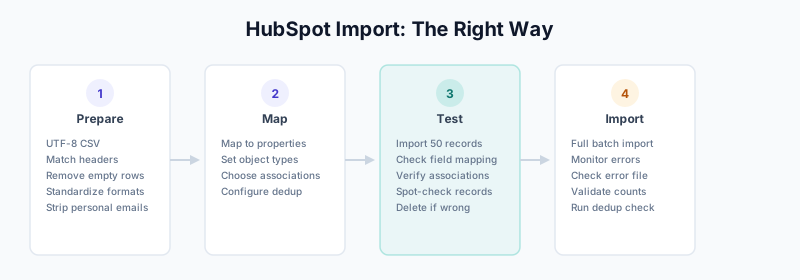
Pre-Import Checklist
Before importing anything:
☐ Define the purpose of this import
☐ Identify the source and its reliability
☐ Clean and standardize the data file
☐ Map fields to HubSpot properties
☐ Configure duplicate handling
☐ Test with a small batch first
☐ Plan for post-import validation
File Preparation
Required Format
HubSpot accepts:
- CSV (recommended)
- XLSX (Excel)
CSV Settings:
- UTF-8 encoding (for international characters)
- Comma delimiter
- Text qualifier: double quotes
Column Headers
Good headers (match HubSpot property names):
firstname, lastname, email, company, phone, jobtitle

Bad headers (will require manual mapping):
First, Last, E-mail Address, Company Name, Tel, Job
Pro tip: Export existing HubSpot contacts first to get exact header names.
Data Cleaning
Before import, clean your file:
1. Remove completely empty rows
Before:
John,Smith,john@acme.com
,,
Jane,Doe,jane@acme.com

After:
John,Smith,john@acme.com
Jane,Doe,jane@acme.com
2. Standardize phone formats
Before:
(555) 123-4567
555.123.4567
5551234567

After (pick one):
+15551234567
+15551234567
+15551234567
See Phone Number Standardization for details.
3. Validate emails
Check for:
- Missing @ symbol
- Invalid domains
- Typos (gmial, yahooo)
- Role addresses (info@, sales@)
4. Normalize text fields
Before:
JOHN SMITH
john smith
John smith

After:
John Smith
5. Standardize company names
Before:
Acme Inc
Acme, Inc.
ACME
Acme Incorporated

After:
Acme Inc
6. Handle special characters
Check for:
- Line breaks within cells (will break CSV)
- Commas in text (need quoting)
- Unicode characters (need UTF-8)
Data Validation Script
Use Python or Excel to validate before import:
import pandas as pd
import re

df = pd.read_csv('import_file.csv')

# Check for required fields
required_fields = ['email', 'firstname', 'lastname']
for field in required_fields:
    missing = df[df[field].isna() | (df[field] == '')]
    if len(missing) > 0:
        print(f"Warning: {len(missing)} rows missing {field}")

# Validate email format
email_pattern = r'^[a-zA-Z0-9._%+-]+@[a-zA-Z0-9.-]+\.[a-zA-Z]{2,}$'
invalid_emails = df[~df['email'].str.match(email_pattern, na=False)]
if len(invalid_emails) > 0:
    print(f"Warning: {len(invalid_emails)} invalid emails found")

# Check for duplicates
duplicates = df[df.duplicated(subset=['email'], keep=False)]
if len(duplicates) > 0:
    print(f"Warning: {len(duplicates)} duplicate emails in file")

# Preview
print(f"Total rows: {len(df)}")
print(f"Ready for import: {len(df) - len(invalid_emails) - len(duplicates)}")
Import Process
Step 1: Start Import
- Go to Contacts (or Companies, Deals)
- Click Import
- Choose Start an import
- Select File from computer
Step 2: Choose Import Type
Single object:
- Contacts only
- Companies only
- Deals only
Multiple objects:
- Contacts and Companies (associated)
- Deals with Companies and Contacts
For related data, import in order:
- Companies first
- Contacts second (associate to companies)
- Deals last (associate to contacts and companies)
Step 3: Upload and Map
Upload your file, then map columns:
CSV Column          → HubSpot Property
─────────────────────────────────────────
email               → Email
firstname           → First name
lastname            → Last name
company             → Company name
phone               → Phone number
jobtitle            → Job title
website             → Website URL
linkedin            → LinkedIn (custom property)
lead_source         → Original source
Handling unmapped columns:
- Create new property (if needed)
- Don’t import (skip column)
Property types matter:
- Text → Single-line or multi-line text
- Number → Number property
- Date → Date property (check format!)
- Dropdown → Must match existing options
Step 4: Duplicate Handling
This is critical. Configure carefully:
Duplicate detection options:
─────────────────────────────────────────

1. Contact email address
   → Recommended for contacts
   → Unique identifier

2. Company domain name
   → Recommended for companies
   → Based on website URL

3. Don't create duplicates (update existing)
   → Import updates existing records
   → Creates new only if no match

4. Create new records always
   → Dangerous! Creates duplicates
   → Only use for truly new data
Recommended settings:
For Contacts:
  Duplicate field: Email
  Action: Update existing and create new

For Companies:
  Duplicate field: Company domain name
  Action: Update existing and create new
Step 5: Review and Import
Before clicking Import:
- Review the summary
- Check mapped fields
- Verify duplicate settings
- Note the estimated record count
Import Settings Deep Dive
Date Formats
HubSpot accepts various date formats:
Supported:
- YYYY-MM-DD (2026-01-29) — recommended
- MM/DD/YYYY (01/29/2026)
- DD/MM/YYYY (29/01/2026) — ambiguous!

Set your format:
1. During import, click the date column
2. Select correct format
3. Preview to verify
Number Properties
Correct:
- 1234567
- 1234.56
- -500

Incorrect:
- $1,234 (remove currency symbols)
- 1,234,567 (no thousand separators)
- 1.234.567 (European format)
Multi-Select Properties
For properties allowing multiple values:
Format: Semicolon-separated

Column: industries
Value: Technology;Healthcare;Finance

HubSpot stores: ["Technology", "Healthcare", "Finance"]
Associations
To associate contacts with companies during import:
Option 1: Company domain column
- Include website/domain for each contact
- HubSpot matches to existing companies

Option 2: Two-file import
- File 1: Companies
- File 2: Contacts with company domain
- Import companies first
Post-Import Validation
Immediate Checks
After import completes:
- Check the import summary
Records imported: 5,000
Records created: 4,200
Records updated: 800
Errors: 47- Review error file
- Download the error report
- Fix issues in source data
- Re-import failed rows
- Spot-check records
- Open 10-20 random records
- Verify data looks correct
- Check associations
Validation Workflow
Create a workflow to flag imported records:
Workflow: Post-Import Validation

Trigger: Contact property "Recent import" equals "January 2026 Trade Show"

Actions:
1. Wait: 1 day

2. If/then: Data quality check
   If email is empty:
     → Add to "Import - Missing Email" list

   If company is empty:
     → Add to "Import - Missing Company" list

   If phone format is invalid:
     → Add to "Import - Bad Phone" list

3. Calculate data quality score
   (See: Salesforce Data Quality Scorecard for similar approach)
Data Quality Report
Run reports after import:
Report: Import Quality Assessment

Metrics:
- Records imported: X
- Complete records (all required fields): Y%
- Missing email: Z
- Missing company: W
- Duplicate potential: V

Breakdown by:
- Lead source
- Import batch
- Owner
Duplicate Prevention
Before Import
- Dedupe your file first
# Remove duplicates from import file
df_clean = df.drop_duplicates(subset=['email'], keep='first')
print(f"Removed {len(df) - len(df_clean)} duplicates")- Check against existing records
Export current HubSpot contacts:
- Get all email addresses

Compare import file:
- Mark records that already exist
- Decide: update or skip?
During Import
Configure HubSpot’s duplicate detection:
- Always use email for contacts
- Always use domain for companies
- Choose “Update existing” over “Create new”
After Import
Run HubSpot’s duplicate management:
- Go to Contacts → Actions → Manage duplicates
- Review suggestions
- Merge legitimate duplicates
- Mark false positives
Import Workflows
Workflow 1: Trade Show Lead Import
Source: Trade show badge scans (CSV)

Pre-import:
1. Clean company names
2. Standardize phone numbers
3. Validate emails (remove role addresses)
4. Add custom property: Lead Source = "Trade Show - January 2026"

Import settings:
- Object: Contacts
- Duplicate handling: Email (update existing)
- Create associations: By company domain

Post-import:
1. Run deduplication check
2. Assign to appropriate owner
3. Add to trade show list
4. Trigger nurture sequence
Workflow 2: Purchased List Import
Source: Purchased prospect list

Pre-import:
1. Verify list source is legitimate
2. Heavy validation (many purchased lists are poor quality)
3. Check against suppression lists
4. Add: Lead Source = "Purchased List - [Vendor]"

Import settings:
- Object: Contacts
- Duplicate handling: Email (skip if exists)
- Do NOT update existing records

Post-import:
1. Immediate quality check
2. Email verification workflow
3. Gradual outreach (don't blast)
4. Monitor bounce rates closely
Workflow 3: CRM Migration
Source: Salesforce export

Pre-import:
1. Export Salesforce data with IDs
2. Clean and transform
3. Map Salesforce fields to HubSpot properties
4. Test with 100 records first

Import order:
1. Companies (with Salesforce ID)
2. Contacts (with company association)
3. Deals (with contact and company associations)

Post-import:
1. Validate associations
2. Check all custom properties
3. Verify data integrity
4. Update any integrations
Common Import Mistakes
Mistake 1: Importing Without Cleaning
Problem: Raw data goes straight into HubSpot
Solution:
- Always clean in spreadsheet first
- Standardize formats
- Remove empties and duplicates
Mistake 2: Wrong Duplicate Settings
Problem: “Create new records” creates thousands of duplicates
Solution:
- Always use email/domain matching
- Default to “Update existing and create new”
- Never blind-create
Mistake 3: Ignoring Errors
Problem: 500 errors get ignored, data is incomplete
Solution:
- Always download error file
- Fix and re-import failed rows
- Track import quality over time
Mistake 4: No Post-Import Validation
Problem: Imported data silently wrong
Solution:
- Spot-check immediately
- Run quality reports
- Use validation workflows
Mistake 5: Single Massive Import
Problem: 100,000 records in one import, something goes wrong
Solution:
- Break into batches (5,000-10,000)
- Validate each batch
- Easier to troubleshoot
Automation for Regular Imports
Scheduled Imports
For recurring data sources:
HubSpot Operations Hub:
1. Set up data sync or workflow
2. Configure source (Google Sheets, Dropbox, etc.)
3. Map fields
4. Schedule frequency
5. Set up error notifications
API Imports
For developer-managed imports:
// HubSpot API batch create
const hubspot = require('@hubspot/api-client');
const client = new hubspot.Client({ accessToken: 'your-token' });

async function importContacts(contacts) {
  const batchInput = {
    inputs: contacts.map(contact => ({
      properties: {
        email: contact.email,
        firstname: contact.firstname,
        lastname: contact.lastname,
        company: contact.company
      }
    }))
  };

  try {
    const response = await client.crm.contacts.batchApi.create(batchInput);
    console.log('Imported:', response.results.length);
  } catch (e) {
    console.error('Error:', e.message);
  }
}
Integration-Based Imports
For tools that sync with HubSpot:
- Clay → HubSpot integration
- Salesforce sync
- Marketing automation platforms
Configure sync settings carefully—same duplicate rules apply.
Related Guides
- HubSpot Duplicate Management — Handle duplicates after import
- HubSpot Operations Hub — Automate data quality
- Phone Number Standardization — Pre-import phone formatting
- Breeze Intelligence Guide — Enrich imported records
- The B2B Data Decay Problem — Why imports decay over time