Phone Number Standardization for CRM: Complete Guide
Standardize phone numbers in Salesforce and HubSpot. Learn formatting rules, automation approaches, and international number handling.
Phone number data is notoriously messy. The same number can appear a dozen different ways, breaking deduplication, routing, and dialers.
This guide covers how to standardize phone formats in Salesforce and HubSpot, with automation approaches that work at scale.
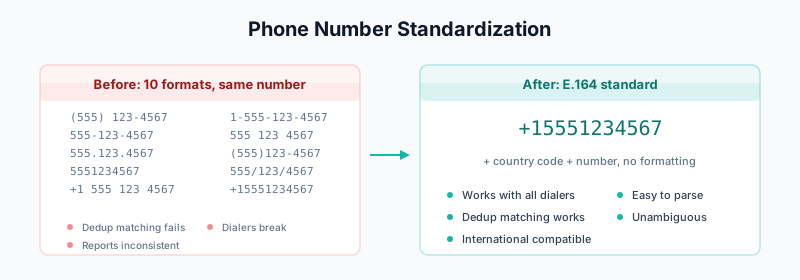
The Phone Number Problem
Real-world examples from a typical CRM:
All the same number, different formats:
─────────────────────────────────────────
(555) 123-4567
555-123-4567
555.123.4567
5551234567
+1 555 123 4567
+15551234567
1-555-123-4567
555 123 4567
(555)123-4567
555/123/4567
This mess causes:
- Duplicate detection failures — matching rules can’t find matches
- Dialer integration issues — click-to-call breaks
- Reporting inconsistencies — can’t analyze by area code
- Poor customer experience — reps see confusing data
Choosing a Standard Format
Pick one format and enforce it everywhere.
E.164 Format (Recommended)
The international standard:
Format: +[country code][number]
Example: +15551234567

Rules:
- Start with +
- Country code (1 for US/Canada)
- No spaces, dashes, or parentheses
- 10-15 digits total
Pros:
- International compatibility
- Works with all dialers
- Unambiguous
- Easy to parse programmatically
Cons:
- Less human-readable
- Requires country code knowledge
US National Format
For US-only operations:
Format: (XXX) XXX-XXXX
Example: (555) 123-4567

Rules:
- Parentheses around area code
- Space after area code
- Dash after exchange
Pros:
- Familiar to US users
- Human-readable
Cons:
- US-specific
- Multiple variations exist
- Harder to parse
Recommendation
Primary storage: E.164 (+15551234567)
Display format: (555) 123-4567

Store in E.164, display in national format.
This gives you both machine-readability and human-friendliness.
Salesforce Standardization
Formula Field Approach
Create a formula field that formats phone numbers:
Field: Phone_Formatted__c
Type: Formula (Text)

Formula:
IF(
  LEN(SUBSTITUTE(SUBSTITUTE(SUBSTITUTE(SUBSTITUTE(SUBSTITUTE(
    Phone, "(", ""), ")", ""), "-", ""), " ", ""), ".", "")
  ) = 10,

  "(" & LEFT(
    SUBSTITUTE(SUBSTITUTE(SUBSTITUTE(SUBSTITUTE(SUBSTITUTE(
      Phone, "(", ""), ")", ""), "-", ""), " ", ""), ".", ""),
    3
  ) & ") " &
  MID(
    SUBSTITUTE(SUBSTITUTE(SUBSTITUTE(SUBSTITUTE(SUBSTITUTE(
      Phone, "(", ""), ")", ""), "-", ""), " ", ""), ".", ""),
    4, 3
  ) & "-" &
  RIGHT(
    SUBSTITUTE(SUBSTITUTE(SUBSTITUTE(SUBSTITUTE(SUBSTITUTE(
      Phone, "(", ""), ")", ""), "-", ""), " ", ""), ".", ""),
    4
  ),

  Phone
)
This strips non-digits, then reformats as (XXX) XXX-XXXX.
Flow-Based Standardization
Better approach—standardize on save:
Flow: Standardize Phone Numbers
Trigger: Contact is created or updated
         AND Phone is changed

Steps:

1. Formula: Strip Non-Digits
   Variable: cleanPhone =
   SUBSTITUTE(SUBSTITUTE(SUBSTITUTE(SUBSTITUTE(
     {!$Record.Phone}, "(", ""), ")", ""), "-", ""), " ", "")

   Then: SUBSTITUTE(cleanPhone, ".", "")

2. Decision: Check Length

   If cleanPhone length = 10 (US number):
     → US Format Branch

   If cleanPhone length = 11 AND starts with "1":
     → US Format Branch (strip leading 1)

   If cleanPhone length > 11:
     → International Branch

   Else:
     → Invalid Branch

3. US Format Branch:
   Assignment:
   formattedPhone = "(" & LEFT(cleanPhone, 3) & ") " &
                    MID(cleanPhone, 4, 3) & "-" &
                    RIGHT(cleanPhone, 4)

4. Update Records:
   Phone = formattedPhone
Apex Trigger Approach
For complex requirements:
trigger PhoneStandardization on Contact (before insert, before update) {
    for (Contact c : Trigger.new) {
        if (c.Phone != null) {
            c.Phone = PhoneUtils.standardize(c.Phone);
        }
        if (c.MobilePhone != null) {
            c.MobilePhone = PhoneUtils.standardize(c.MobilePhone);
        }
        if (c.OtherPhone != null) {
            c.OtherPhone = PhoneUtils.standardize(c.OtherPhone);
        }
    }
}

public class PhoneUtils {

    public static String standardize(String phone) {
        if (String.isBlank(phone)) return phone;

        // Remove all non-digits
        String digits = phone.replaceAll('[^0-9]', '');

        // Handle US numbers
        if (digits.length() == 10) {
            return formatUS(digits);
        }

        // Handle US numbers with country code
        if (digits.length() == 11 && digits.startsWith('1')) {
            return formatUS(digits.substring(1));
        }

        // Handle international (E.164)
        if (digits.length() > 11) {
            return '+' + digits;
        }

        // Return as-is if can't standardize
        return phone;
    }

    private static String formatUS(String digits) {
        // Format: (XXX) XXX-XXXX
        return '(' + digits.substring(0, 3) + ') ' +
               digits.substring(3, 6) + '-' +
               digits.substring(6);
    }

    public static String toE164(String phone, String countryCode) {
        String digits = phone.replaceAll('[^0-9]', '');

        if (digits.length() == 10 && countryCode == 'US') {
            return '+1' + digits;
        }

        if (!digits.startsWith('+')) {
            return '+' + digits;
        }

        return digits;
    }
}
Validation Rules
Prevent bad phone data at entry:
Rule Name: Phone_Format_Validation
Object: Contact

Formula:
AND(
  NOT(ISBLANK(Phone)),
  NOT(REGEX(Phone, "^\\([0-9]{3}\\) [0-9]{3}-[0-9]{4}$"))
)

Error Message:
"Phone must be in format (XXX) XXX-XXXX"
For E.164 format:
Rule Name: Phone_E164_Validation
Object: Contact

Formula:
AND(
  NOT(ISBLANK(Phone)),
  NOT(REGEX(Phone, "^\\+[1-9][0-9]{9,14}$"))
)

Error Message:
"Phone must be in E.164 format: +15551234567"
HubSpot Standardization
Operations Hub Formatting
Use Operations Hub for automatic formatting:
Workflow: Format Phone Numbers
Trigger: Contact property "Phone number" is known

Action: Format data
  Property: Phone number
  Format type: Format phone number
  Country code: United States (+1)
HubSpot’s built-in phone formatting handles:
- Stripping special characters
- Adding country codes
- Standardizing format
Custom Code Action
For more control, use custom code in Operations Hub Professional:
exports.main = async (event, callback) => {
  const phone = event.inputFields['phone'];

  if (!phone) {
    callback({ outputFields: { phone_formatted: '' } });
    return;
  }

  // Strip non-digits
  let digits = phone.replace(/\D/g, '');

  // Handle US numbers
  if (digits.length === 10) {
    const formatted = `(${digits.slice(0,3)}) ${digits.slice(3,6)}-${digits.slice(6)}`;
    callback({ outputFields: { phone_formatted: formatted } });
    return;
  }

  // Handle US with country code
  if (digits.length === 11 && digits.startsWith('1')) {
    digits = digits.slice(1);
    const formatted = `(${digits.slice(0,3)}) ${digits.slice(3,6)}-${digits.slice(6)}`;
    callback({ outputFields: { phone_formatted: formatted } });
    return;
  }

  // International: return E.164
  if (digits.length > 11) {
    callback({ outputFields: { phone_formatted: '+' + digits } });
    return;
  }

  // Return original if can't format
  callback({ outputFields: { phone_formatted: phone } });
};
Property Settings
Configure phone properties correctly:
- Go to Settings → Properties
- Edit Phone number property
- Set Field type to Phone number
- Enable Country code dropdown
- Set default country
International Numbers
Country Code Handling
Country Codes:
+1   - US, Canada
+44  - UK
+49  - Germany
+33  - France
+61  - Australia
+91  - India
+86  - China
+81  - Japan
Multi-Country Standardization
Store country code separately or within number:
Option 1: Separate fields
Phone: 5551234567
Phone_Country__c: US

Option 2: E.164 (recommended)
Phone: +15551234567

Option 3: Display with code
Phone: +1 (555) 123-4567
Flow for International
Flow: Standardize International Phone

Variables:
- countryCode (from Account.BillingCountry or input)
- rawPhone
- formattedPhone

Decision Tree:

1. If countryCode = "United States" or "US":
   - Format as +1XXXXXXXXXX

2. If countryCode = "United Kingdom" or "UK":
   - Remove leading 0 if present
   - Format as +44XXXXXXXXX

3. If countryCode = "Germany" or "DE":
   - Remove leading 0 if present
   - Format as +49XXXXXXXXX

4. Default:
   - Store as +[digits]
Batch Standardization
Existing Data Cleanup
For bulk standardization of existing records:
Salesforce Data Loader:
- Export records with Phone fields
- Process in Excel/Python:
import pandas as pd
import re

def standardize_phone(phone):
    if pd.isna(phone):
        return phone

    # Strip non-digits
    digits = re.sub(r'\D', '', str(phone))

    # US 10-digit
    if len(digits) == 10:
        return f"({digits[:3]}) {digits[3:6]}-{digits[6:]}"

    # US with country code
    if len(digits) == 11 and digits.startswith('1'):
        digits = digits[1:]
        return f"({digits[:3]}) {digits[3:6]}-{digits[6:]}"

    # International
    if len(digits) > 11:
        return f"+{digits}"

    return phone

# Load data
df = pd.read_csv('contacts_export.csv')

# Standardize
df['Phone'] = df['Phone'].apply(standardize_phone)
df['MobilePhone'] = df['MobilePhone'].apply(standardize_phone)

# Export for reimport
df.to_csv('contacts_standardized.csv', index=False)- Re-import with Data Loader (Update mode)
Using DemandTools:
- Open MassEffect module
- Select Contact object
- Add transformation:
- Field: Phone
- Operation: Custom formula or regex
- Preview results
- Execute update
HubSpot Bulk Update
- Export contacts to CSV
- Process phone numbers
- Re-import with “Update existing contacts”
Or use Operations Hub workflow with:
- Trigger: “Contact is any contact”
- Re-enrollment: Allow
Quality Assurance
Validation Reports
Salesforce Report: Invalid Phone Formats
Report Type: Contacts
Filters:
  - Phone != null
  - Phone does not match pattern "\([0-9]{3}\) [0-9]{3}-[0-9]{4}"

Columns:
- Name
- Phone
- Owner
- Last Modified Date
HubSpot List: Non-Standard Phones
List Type: Active list
Criteria:
  - Phone number is known
  - Phone number does not contain regex "^\(\d{3}\) \d{3}-\d{4}$"
Ongoing Monitoring
Track standardization metrics:
Weekly Phone Quality Report:

Total phone numbers: 50,000
Standardized format: 47,500 (95%)
Non-standard: 2,500 (5%)
  - Too short: 800
  - Too long: 400
  - Invalid characters: 300
  - Missing country code: 1,000

Action items:
- Review 800 short numbers (may be extensions)
- Validate 400 long numbers (international?)
- Fix 300 invalid characters via automation
Integration Considerations
Dialer Compatibility
Most dialers expect specific formats:
Dialpad: E.164 or 10-digit
Aircall: E.164 preferred
RingCentral: Various formats accepted
Salesloft: Configurable
Outreach: E.164 recommended
Sync Between Systems
When syncing between Salesforce and HubSpot:
Sync Rule: Phone Number
Direction: Bi-directional

Salesforce format: (555) 123-4567
HubSpot format: +15551234567

Solution:
1. Store canonical format (E.164) in both
2. Use formula fields for display formatting
3. Or: Transform during sync via middleware
Enrichment Tools
Enrichment providers return different formats:
ZoomInfo: +1 555-123-4567
Apollo: (555) 123-4567
Clearbit: +15551234567
Lusha: 5551234567
Standardize immediately after enrichment:
Enrichment Workflow:
1. Receive enriched phone from provider
2. Pass through standardization function
3. Store in CRM
4. Never store raw provider format
Mobile vs Landline
Separate Fields
Best practice—keep mobile and landline separate:
Salesforce Fields:
- Phone (primary/landline)
- MobilePhone
- OtherPhone (secondary)

HubSpot Properties:
- Phone number
- Mobile phone number
- Fax (if needed)
Mobile Detection
Some enrichment providers indicate phone type:
If phone_type = "mobile":
  → Store in MobilePhone field

If phone_type = "direct" or "landline":
  → Store in Phone field

If phone_type = "main":
  → Store in OtherPhone or Company Phone
Related Guides
- Salesforce Matching Rules — Phone matching configuration
- HubSpot Operations Hub — Automated formatting
- Salesforce Data Quality Scorecard — Track phone completeness
- DemandTools Guide — Bulk phone standardization
- Waterfall Enrichment — Get phone numbers from multiple sources