Cross-Object Deduplication: Salesforce Lead to Contact Matching
Prevent creating Leads that duplicate existing Contacts. Complete guide to cross-object duplicate detection and Lead conversion workflows.
One of the most common data quality issues in Salesforce: creating a Lead for someone who already exists as a Contact.
Sales reps waste time pursuing “new” leads who are actually existing customers. Marketing sends nurture emails to people who’ve already bought. Reports show inflated pipeline numbers.
This guide shows you how to prevent Lead-Contact duplicates and handle them when they occur.
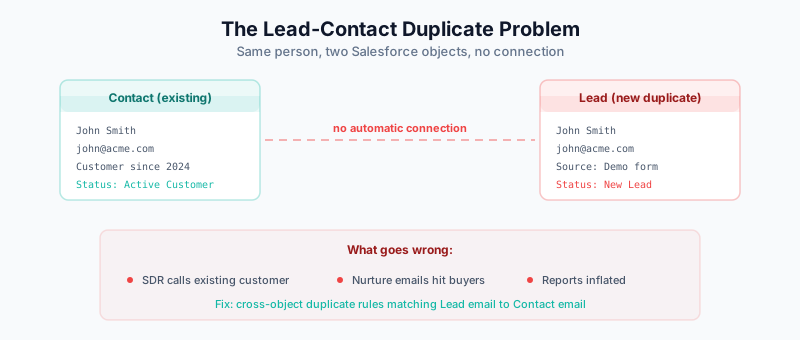
The Lead-Contact Duplicate Problem
Salesforce treats Leads and Contacts as separate objects. By default, nothing stops you from creating a Lead for someone who exists as a Contact.
Scenario:
─────────────────────────────────────────────────────
1. John Smith is a customer (Contact record exists)
2. John visits your website, fills out a demo form
3. Marketing automation creates a new Lead
4. SDR calls John, not knowing he's already a customer
5. Embarrassment ensues
This happens because:
- Standard duplicate rules are single-object (Lead-to-Lead, Contact-to-Contact)
- Form integrations create Leads by default
- Users don’t check for existing records
Solution 1: Cross-Object Duplicate Rules
Salesforce allows matching rules to compare Leads against Contacts.
Setting Up Lead-to-Contact Matching
Step 1: Create a Matching Rule
- Go to Setup → Matching Rules
- Click New Rule
- Configure:
Object: Lead
Rule Name: Lead to Contact - Email Match

Matching Criteria:
  Field: Email
  Matching Method: Exact
Match Blank Fields: No- Activate the matching rule
Step 2: Create a Duplicate Rule
- Go to Setup → Duplicate Rules
- Click New Rule
- Configure:
Object: Lead
Rule Name: Prevent Lead Duplicating Contact

Record-Level Security: Enforce sharing rules

Actions:
  On Create: Alert (or Block)
  On Edit: Alert

Alert Text:
"This lead may already exist as a contact:
{!Duplicate.Name} at {!Duplicate.Account.Name}
Please verify before proceeding."

Matching Rules:
  - Lead to Contact - Email Match
Compare against: Contact- Activate the duplicate rule
What Users See
When someone tries to create a Lead matching an existing Contact:
Alert mode:
┌─────────────────────────────────────────────────┐
│  ⚠️ Potential Duplicate Detected               │
│                                                 │
│  This lead may already exist as a contact:     │
│  John Smith at Acme Corporation                 │
│                                                 │
│  [View Duplicate]  [Save Anyway]  [Cancel]     │
└─────────────────────────────────────────────────┘
Block mode:
┌─────────────────────────────────────────────────┐
│  ❌ Cannot Create Lead                          │
│                                                 │
│  This person already exists as a contact:      │
│  John Smith at Acme Corporation                 │
│                                                 │
│  [View Contact]  [Cancel]                      │
└─────────────────────────────────────────────────┘
Solution 2: Automation-Based Prevention
For records created via automation (forms, integrations), use Flow or Apex.
Flow-Based Lead Deduplication
Create a Record-Triggered Flow:
Flow: Lead - Check for Existing Contact
Trigger: Lead is created
Run: Before Save

Steps:

1. Get Records
   Object: Contact
   Filter: Email = {!$Record.Email}
   Store: contactMatch

2. Decision
   If: contactMatch is not null

   True Branch:
     - Update Records
       Record: {!$Record}
       Field Updates:
         Status = "Duplicate - Existing Contact"
         Description = "Matches Contact: " + contactMatch.Id

     - Create Task
       Subject: "Review duplicate lead"
       Related To: {!$Record.Id}
       Assigned To: Lead Owner

   False Branch:
     - (Continue normal processing)
Apex Trigger Approach
For more complex logic:
trigger LeadDuplicateCheck on Lead (before insert) {
    // Collect emails from new leads
    Set<String> leadEmails = new Set<String>();
    for (Lead l : Trigger.new) {
        if (String.isNotBlank(l.Email)) {
            leadEmails.add(l.Email.toLowerCase());
        }
    }

    // Query existing contacts
    Map<String, Contact> contactsByEmail = new Map<String, Contact>();
    for (Contact c : [
        SELECT Id, Email, Name, AccountId, Account.Name
        FROM Contact
        WHERE Email IN :leadEmails
    ]) {
        contactsByEmail.put(c.Email.toLowerCase(), c);
    }

    // Check each lead
    for (Lead l : Trigger.new) {
        if (String.isNotBlank(l.Email)) {
            Contact matchingContact = contactsByEmail.get(l.Email.toLowerCase());
            if (matchingContact != null) {
                // Option 1: Block creation
                // l.addError('This person already exists as a contact: ' + matchingContact.Name);

                // Option 2: Mark as duplicate
                l.Status = 'Duplicate - Existing Contact';
                l.Description = 'Matches Contact: ' + matchingContact.Id +
                               ' (' + matchingContact.Name + ' at ' +
                               matchingContact.Account?.Name + ')';
            }
        }
    }
}
Solution 3: Form Integration Settings
Prevent duplicates at the source—configure your form tools to check before creating.
HubSpot to Salesforce
If using HubSpot forms syncing to Salesforce:
- In HubSpot, contacts sync to Salesforce Contacts (not Leads)
- Configure the sync to update existing records
- Use HubSpot’s deduplication before sync
Marketo
- Configure Lead-Contact sync settings
- Enable “Check for existing Contact before creating Lead”
- Set matching criteria (usually email)
Pardot
- Use Prospect-Contact sync
- Configure duplicate handling rules
- Set Salesforce connector to check existing records
Custom Forms (Web-to-Lead)
Modify Web-to-Lead to check existing records:
// Before form submission, check for existing contact
async function checkExistingContact(email) {
  const response = await fetch('/services/apexrest/checkContact?email=' + email);
  const result = await response.json();

  if (result.exists) {
    // Show warning to user
    alert('You appear to already be in our system. A representative will contact you.');
    // Or redirect to customer portal
    window.location = '/customer-login';
    return false;
  }
  return true;
}
Handling Existing Lead-Contact Duplicates
What about duplicates that already exist?
Identifying Existing Duplicates
Report: Leads with Matching Contacts
-- Using SOQL in Developer Console or Workbench
SELECT Id, Name, Email, Company, Status
FROM Lead
WHERE Email IN (SELECT Email FROM Contact WHERE Email != null)
AND IsConverted = false
Or create a Salesforce Report:
- Report Type: Leads
- Filter: Lead Status not equal to Converted
- Cross-filter: Match to Contacts by Email
Resolving Duplicates
Option 1: Convert Leads
If the Lead should become part of the existing Contact’s record:
- Open the Lead
- Click “Convert”
- Select “Attach to existing Contact”
- Choose the matching Contact
Option 2: Merge (if both should exist)
Some scenarios require both records:
- Lead = person at prospect company
- Contact = same person at current customer company
In this case, don’t merge—update associations.
Option 3: Mass Resolution with DemandTools
For bulk cleanup, use DemandTools:
- Export Leads with matching Contact emails
- Review and categorize
- Mass convert or delete as appropriate
Automation for Ongoing Cleanup
Scheduled Flow: Weekly Duplicate Report
Flow: Weekly Lead-Contact Duplicate Report
Trigger: Scheduled (Every Monday, 6 AM)

Steps:

1. Get Records
   Object: Lead
   Filter:
     - Email != null
     - IsConverted = false
     - CreatedDate = LAST_N_DAYS:7

2. Loop through Leads
   For each Lead:

   3. Get Records (Contact)
      Filter: Email = {!currentLead.Email}
      Store: matchingContact

   4. Decision
      If matchingContact exists:
      - Add to duplicateCollection

5. After Loop:
   - Create Report Task
   - Email to Sales Ops with list
Lead Conversion Best Practices
When converting Leads that match Contacts, follow these practices:
Pre-Conversion Checklist
Before converting Lead to existing Contact:

☐ Verify it's the same person (not just same email)
☐ Check Account association is correct
☐ Review Lead data for any unique info to preserve
☐ Note any campaign associations to transfer
☐ Check for related tasks/activities to move
Conversion Settings
When converting:
- Account: Attach to Contact’s existing Account
- Contact: Select “Attach to existing” → Choose match
- Opportunity: Create only if genuinely new opportunity
- Converted Status: Use appropriate status
Post-Conversion Data Migration
Some Lead fields don’t automatically transfer:
Fields to manually migrate:
- Lead Source (if different/more specific)
- Campaign history
- Custom fields
- Activities and tasks
Create a Flow for automated migration:
Flow: Post-Lead-Conversion Data Sync
Trigger: Lead is converted

Steps:

1. Get converted Lead data
2. Get target Contact
3. Update Contact with any missing Lead data
4. Transfer campaign memberships
5. Reassign tasks (if needed)
Preventing Future Duplicates
Process Recommendations
- Train users on checking for existing records
- Default to Alert (not Block) initially—let users learn
- Create a process for handling flagged duplicates
- Monitor duplicate alerts weekly
- Adjust rules based on false positive rates
System Configuration
Recommended Setup:

Duplicate Rule: Lead-to-Contact (Email Match)
  Action: Alert
  Compare: Contact.Email (Exact)

Duplicate Rule: Lead-to-Lead (Email Match)
  Action: Alert
  Compare: Lead.Email (Exact)

Duplicate Rule: Lead-to-Lead (Name+Company)
  Action: Alert
  Compare: Name (Fuzzy) + Company (Fuzzy)

Flow: Lead Before Insert
  Action: Check Contact, mark if duplicate

Report: Weekly Duplicate Review
  Filter: Status = "Duplicate - Existing Contact"
Metrics to Track
| Metric | Target |
|---|---|
| Lead-Contact duplicates created weekly | <5% of new Leads |
| Duplicate Leads converted properly | >90% |
| Average time to resolve duplicate | <24 hours |
| False positive rate on alerts | <10% |
Related Guides
- Salesforce Duplicate Rules Guide — Complete duplicate rule setup
- Salesforce Matching Rules Explained — Fuzzy vs exact matching
- DemandTools Guide — Bulk duplicate resolution
- HubSpot Duplicate Management — If syncing with HubSpot
- The B2B Data Decay Problem — Why duplicates compound over time